New feature ! You can deploy un-managed applications on macos with Intune leveraging the Intune MDM Agent. It doesn’t take the MDM check-in path but it uses the Intune MDM Agent one. We’ll have a look into the Intune MDM Daemon.
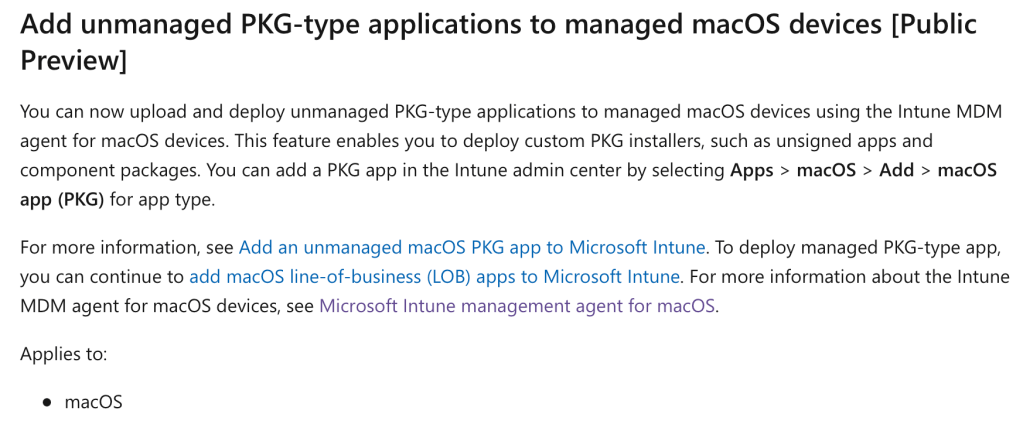
This will impact the sync frequences of your non-managed applications deployments, we’ll get there.
This feature will be useful to you to deploy components package or made-in unsigned applications. BTW, i suggest you to use one of my favorite applications to package your apps : Packages
Upload your .pkg
You got your pkg ? I have mine : Acrobat Reader
My package is not signed with an Apple Developer certificate which was mandatory until then. This app could have been deployed as a managed app and you’ll get why.
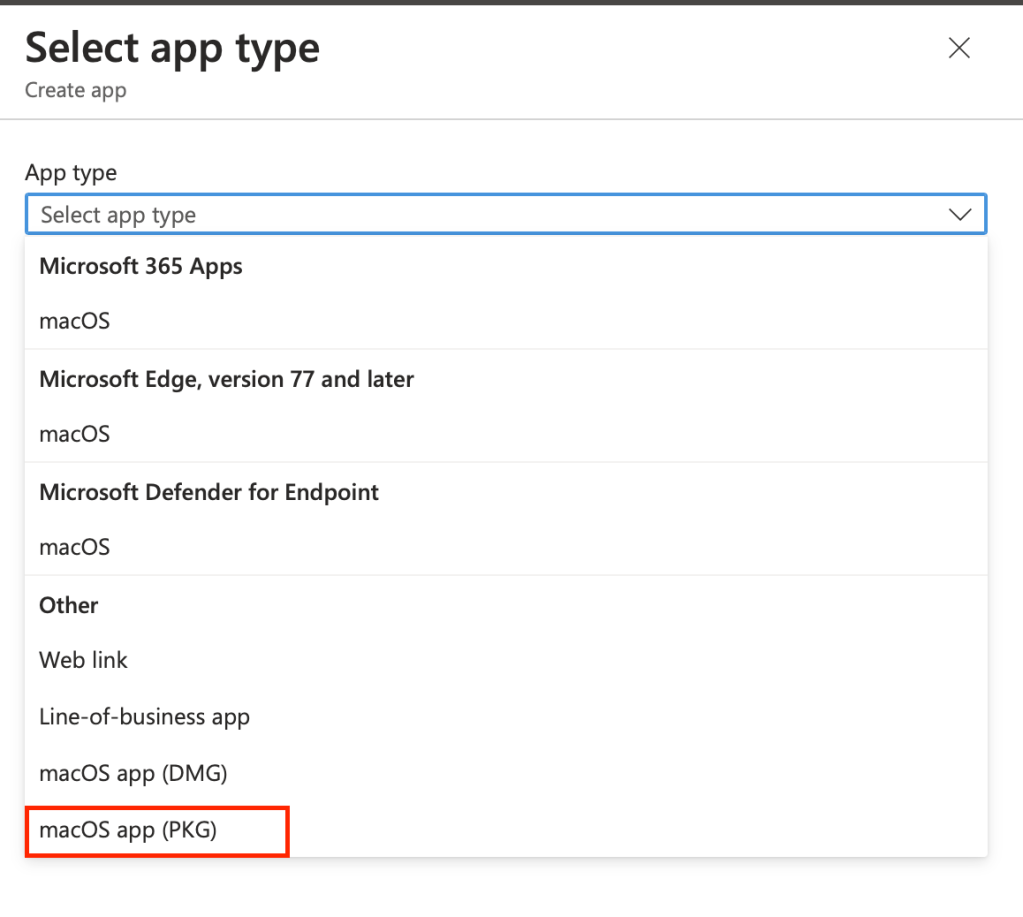
Go on Intune > Apps > Add > macOS app (PKG)
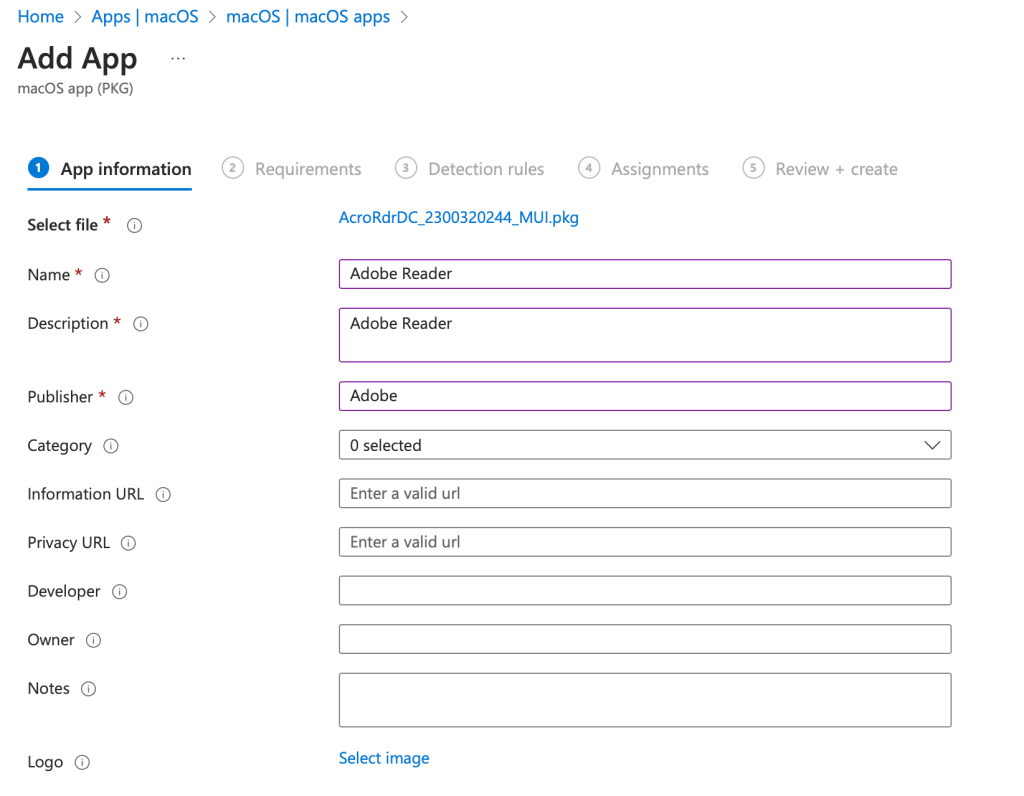
Chose your .pkg, edit informations and set the detection method for your application with the bundleID and the app version. Assign the application to users or devices groups :
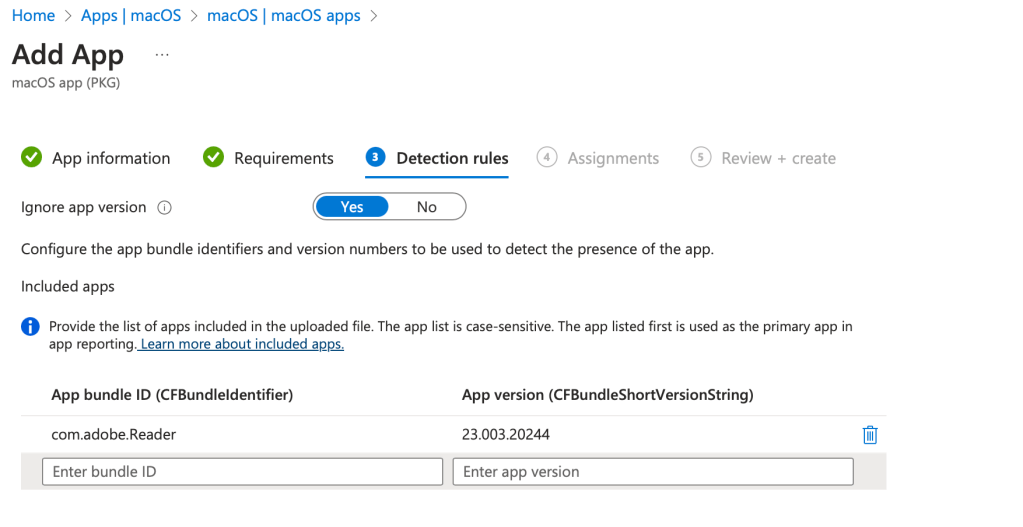
Note that filters don’t seem to be supported at the moment. You can target OS version directly in the Requirements step of your package or use dynamic groups to target a specific OS version such as Monterey or Ventura.
Syncing process
This features leverages the Intune MDM Agent.
Meaning, it has to be installed first. To do that, deploy a shell script on your device with Intune. The Intune Agent will be there as soon as you deploy one.
Open Activity Monitor and observe IntuneMDMAgent daemon running (open View > All processes to see the root context one) :
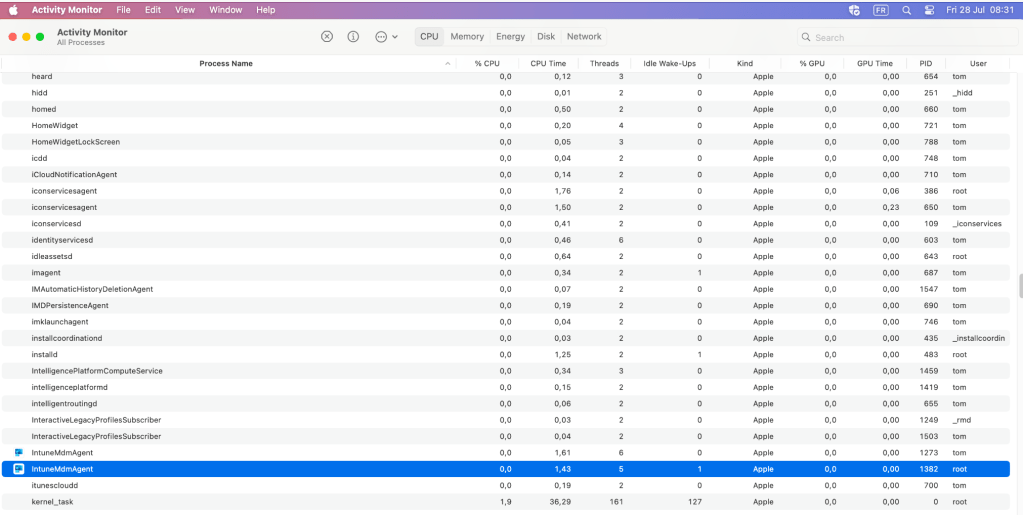
Intune MDM Agent will sync every 8 hours. This is the main difference in my opnion with a regular LOB signed apps which rely on the MDM check-in. Retire the device won’t uninstall apps deployed as un-managed.
IntuneMDMAgent is installed here : /Library/Intune/Microsoft Intune Agent.app
I suggest you to look into the considerations from Microsoft for Intune MDM Agent to get the difference between MDM check-in and agent check-in. Shell scripts deployment is also a nice article to have in mind.
You may want to speed up the process on your test device. To do that, run : sudo killall IntuneMDMAgent or kill the process manually. You can also check-in the device in company portal, that will work.
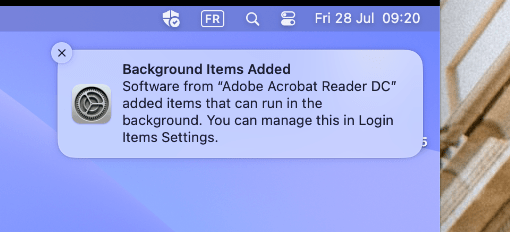
Et voilà !

Agent logs
Let’s have a look into the agent logs to see if there is a trace of Acrobat Reader : /Library/Logs/Microsoft/Intune/IntuneMDMDaemon_creationdate.log
It’s a nice log file to look into when you’re debugging your shell scripts and now your un-managed applications :
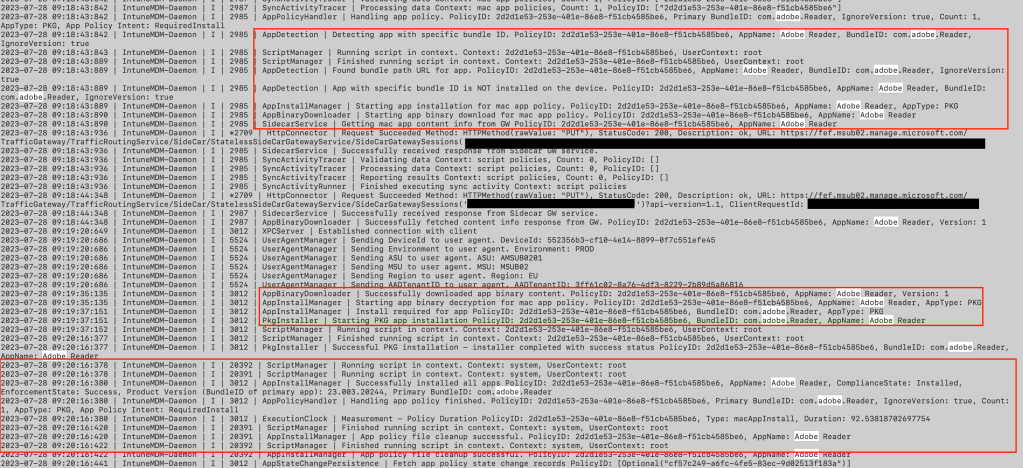
Many info !
Bundle ID is not detected at first so Intune MDM Agent is running the installation.
You can observe appID, bundle id, AppName, device id, Installation behavior, app type and more !
Definitely a useful feature ! However it doesn’t replace the LOB apps deployment from Intune. Keep using regular applications deployment process with the MDM check-in channel by signing your package as Acrobat Reader. This feature is designed to deploy components packages or un-managed apps.
Enjoy !
 Poem to MDM