I understand and respect that the customers I work with prefer a more gradual, step-by-step approach than just delete the stale devices.
This makes sense, as there are legal requirements to keep devices in the ecosystem for a certain period. Moreover, once a device is deleted, the action cannot be undone.
After multiple discussions, we reached a compromise with the following approach :
- Retrieve all managed Windows devices that haven’t synced in 180 days.
- Identify the corresponding Entra objects.
- Disable these devices in Entra.
- Add the devices into an Entra “Locked-Group”
- Apply an Intune policy to block user logins on these devices.
Device will be removed from Intune and Entra with another dedicated runbook. It is not part of this blog post. We will focus on just diasbling these devices.
Now, grab a coffee, it’s scripting time.
Retrieve all managed Windows devices that are 180 days old
First, log in to Microsoft Graph using a securely registered application. You’ll need the following permissions:
GroupMember.ReadWrite.All – To add devices to the locked Entra group.
ManagedDevices.Read.All – To read managed devices.
Device.ReadWrite.All – To read and disable Entra devices.
# Use a vault for a secured usage of your application
$global:tenant = "xx"
$global:clientId = "xx"
$global:clientSecret = "xx"
$SecuredPasswordPassword = ConvertTo-SecureString -String $clientSecret -AsPlainText -Force
$ClientSecretCredential = New-Object -TypeName System.Management.Automation.PSCredential -ArgumentList $clientId, $SecuredPasswordPassword

Connect-MgGraph -TenantId $tenant -ClientSecretCredential $ClientSecretCredential
Set your referenced date with the proper format.
I have a confession. I hate working with dates :
$filterDate = (Get-Date).AddDays(-180).ToString("yyyy-MM-ddTHH:mm:ssZ")Now, let’s retrieve our stale devices and store them in an array.
Make sure to include the ConsistencyLevel: eventual header in your request. You’ll need to specify it directly in your URI for proper querying. Plus, i want to exclusively filter on Windows device.
$allDevices = @()

# create the api uri with the filter, consitancy is needed to handle dates
$nextlink = "https://graph.microsoft.com/beta/devicemanagement/manageddevices?`$filter=lastSyncDateTime lt $filterdate and operatingSystem eq 'Windows'&`$ConsistencyLevel=eventual"

while (![string]::IsNullOrEmpty($nextLink)) {
    $response = Invoke-MgGraphRequest -Method GET -Uri "$nextLink"
    $allDevices += $response.value  # Add this page's devices
    $nextLink = $response.'@odata.nextLink' # Get the next page's URL
    Write-Host $nextLink
}
$alldevices array now contains all our old Windows devices.
Add each device into the Locked group
Let’s first put the groupid in the script before we add the devices into it :
# Group ID where you want to put your device
$groupid = "9b7bd32f-7b3c-4ff6-b30d-63e6857fd432"
Next, for each stale device retrieved from Intune, we need to find its corresponding Entra object ID. To add a device to a group in Entra, we specifically require its Entra object ID. We can obtain this by matching the azureADDeviceId property from the Intune device.
foreach ($device in $alldevices) {
    # Get Entra Object ID
    $azureaddeviceid=$device.azureADDeviceId
    $urientra = "https://graph.microsoft.com/beta/devices?`$filter=deviceid eq '$azureaddeviceid'"
    $request = Invoke-MgGraphRequest -method GET -uri $urientra
    $entraobjectid = $request.value.id
Now, let’s add each device to the designated Entra group using the groupId we defined earlier :
    # Add the device into the group
    $urigroup="https://graph.microsoft.com/v1.0/groups/$groupid/members/`$ref"
    $body = @{
        "@odata.id"="https://graph.microsoft.com/v1.0/directoryObjects/{$entraobjectid}"
      }
    Invoke-MgGraphRequest -method POST -uri $urigroup -Body $body
Disable the device in Entra
Let’s understand what disable a device do before we do it :
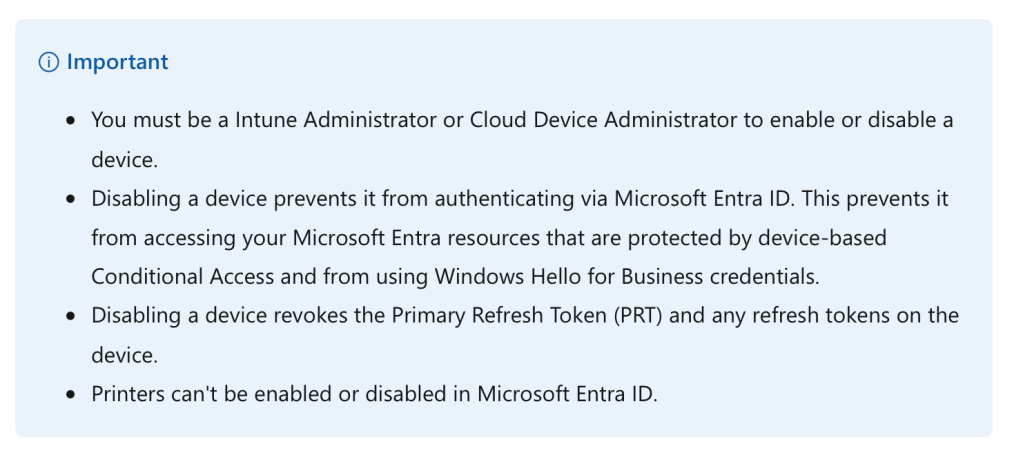
At this stage, the device loses its Primary Refresh Token (PRT), effectively revoking access. As a result, when a user attempts to access a protected resource from a disabled device, they will encounter the following experience :
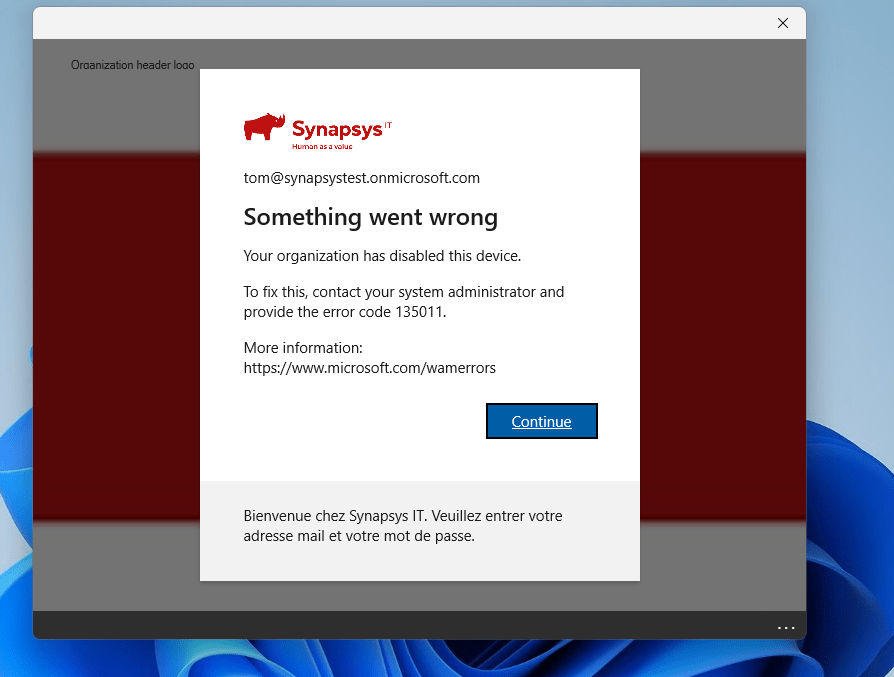
To disable the device, set the accountEnabled property to false. Here’s how to structure the body for the POST action :
    # Disable the device
    $uridisable="https://graph.microsoft.com/beta/devices/$entraobjectid"
    $bodydisable = @{"accountEnabled"="false"}
    Invoke-MgGraphRequest -method POST -uri $uridisable -Body $bodydisable
}
Note : Disabling devices using a registered application in an “application” mode, is only supported for Windows devices.
Quite efficient.
Prevent users from log in
Why adding the devices into a group if i’ve disabled them ?
Disabling the device is enough to prevent users from logging into the device. Though, the customers prefer to add an extra layer of security by targeting this group and preventing any users from logging into the devices, using an Intune configuration profile with the Allow local logon setting.
This setting can be found through the settings catalog. In this policy, I do an exception for one of my break glass account :

Target this policy to the “Disable groups” adds an extra layer of security preventing anyone login from the computer (except the break glass account) :
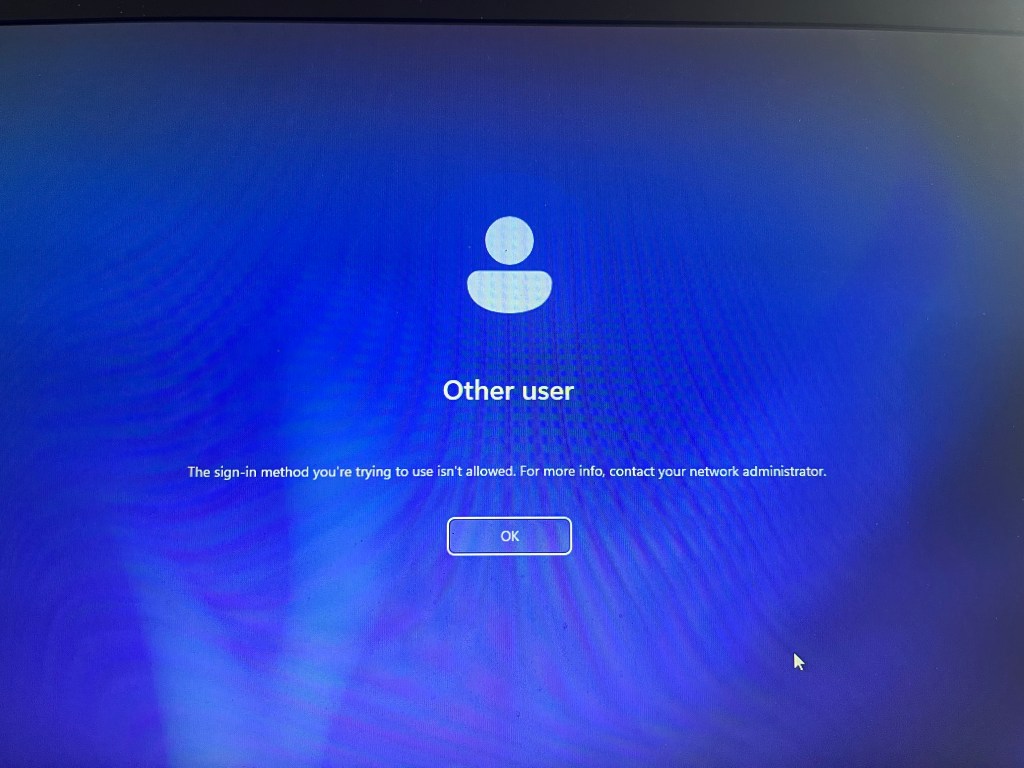
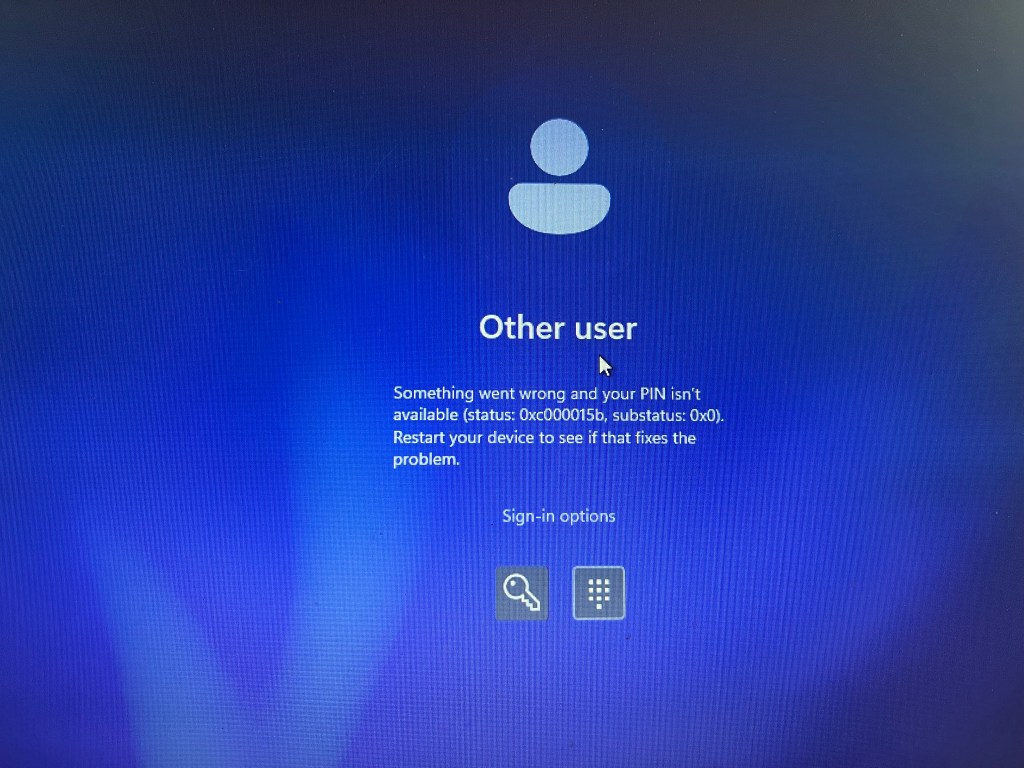
The customer is satisfied because this approach addresses the stale device issue step by step, while also considering users who may not have logged in for an extended period due to reasons like maternity leave, long-term sick leave, or other such circumstances.
Here is the full script. You can also find it in my personal Github :
# Use an Azure Vault for storing your client secret for a secured usage and avoid plain text secret
$global:tenant = "xxxx-xxxx-xxx-xxxx"
$global:clientId = "xxxx-xxxx-xxx-xxxx"
$global:clientSecret = "xxxx-xxxx-xxx-xxxx"
$SecuredPasswordPassword = ConvertTo-SecureString -String $clientSecret -AsPlainText -Force
$ClientSecretCredential = New-Object -TypeName System.Management.Automation.PSCredential -ArgumentList $clientId, $SecuredPasswordPassword

Connect-MgGraph -TenantId $tenant -ClientSecretCredential $ClientSecretCredential


###################################################################################################################
$filterDate = (Get-Date).AddDays(-180).ToString("yyyy-MM-ddTHH:mm:ssZ")
###################################################################################################################


## create array that will contains managed devices filtered
$allDevices = @()

# create the api uri with the filter, consitancy is needed to handle dates
$nextlink = "https://graph.microsoft.com/beta/devicemanagement/manageddevices?`$filter=lastSyncDateTime lt $filterdate and operatingSystem eq 'Windows'&`$ConsistencyLevel=eventual"


while (![string]::IsNullOrEmpty($nextLink)) {
    $response = Invoke-MgGraphRequest -Method GET -Uri "$nextLink"
    $allDevices += $response.value  # Add this page's devices
    $nextLink = $response.'@odata.nextLink' # Get the next page's URL
    Write-Host $nextLink
}

# Group ID where you want to put your device
$groupid = "9b7bd32f-7b3c-4ff6-b30d-63e6857fd432"

foreach ($device in $alldevices) {
    # Get Entra Object ID
    $azureaddeviceid=$device.azureADDeviceId
    $urientra = "https://graph.microsoft.com/beta/devices?`$filter=deviceid eq '$azureaddeviceid'"
    $request = Invoke-MgGraphRequest -method GET -uri $urientra
    $entraobjectid = $request.value.id
    # Add the device into the group
    $urigroup="https://graph.microsoft.com/v1.0/groups/$groupid/members/`$ref"
    $body = @{
        "@odata.id"="https://graph.microsoft.com/v1.0/directoryObjects/{$entraobjectid}"
      }
    Invoke-MgGraphRequest -method POST -uri $urigroup -Body $body
    # Disable the device
    $uridisable="https://graph.microsoft.com/beta/devices/$entraobjectid"
    $bodydisable = @{"accountEnabled"="false"}
    Invoke-MgGraphRequest -method POST -uri $uridisable -Body $bodydisable
}
 Poem to MDM