
Amazing are the Cloud PCs. Top features, it fits with a lot of the use cases, great support from Microsoft and what a great experience it is.
You have deployed multiple Cloud PCs in your organization. However, once deployed, some Cloud PCs may not be used as frequently as expected, leading to inefficiencies and unnecessary costs.
Click on a single Cloud PC, and you will get the Performance Pane containing the info of the last logon and the usage hours :

While Intune provides usage insights on a per-device basis, there is no built-in way to export usage data for multiple Cloud PCs simultaneously.
Let’s Graph ! Or skip the explanation and grab the full script directly from my Github.
How the API works
Let’s get closer of the reports and dig into the API :
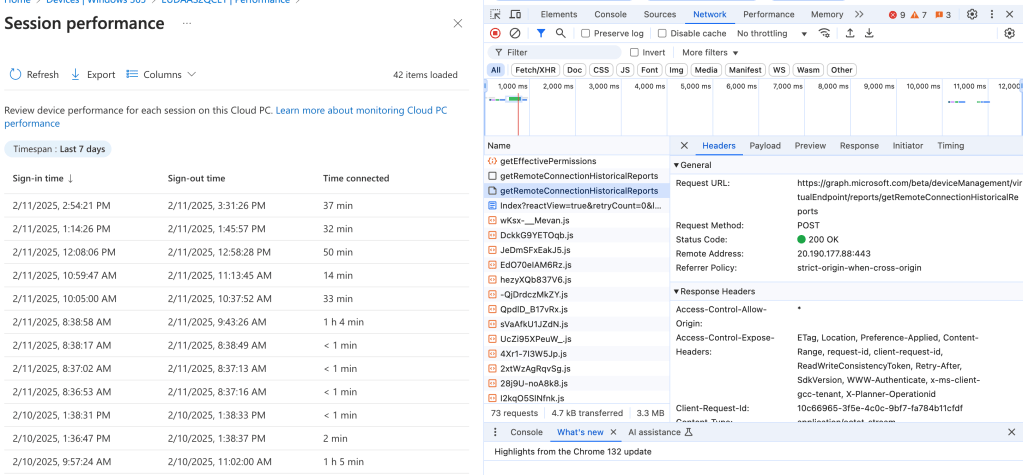
To fetch Cloud PC usage details, we use the following Graph URI : https://graph.microsoft.com/beta/deviceManagement/virtualEndpoint/reports/getRemoteConnectionHistoricalReports
Let’s see the POST action body :

Oooh : {“top”:50,”skip”:0,”filter”:”CloudPcId eq ‘c86b874c-45af-4eac-bc64-35d00ab6d374’ and SignInDateTime gt datetime’2025-02-05T05:57:25.772Z'”,”select”:[“SignInDateTime”,”SignOutDateTime”,”UsageInHour”],”orderBy”:[“SignInDateTime desc”]}
So there is CloudPCId somewhere which is used to filter, and i can combine SignInDateTime to filter on x days directly in my body. The X days is actually the 7 days timestamp.
Now we understand how the API actually works, time for scripting !
Let’s automate
As always, connect to graph using a registered application. This time, you will need at least the following permissions : CloudPC.Read.All and DeviceManagementManagedDevices.Read.All
We create alldevices array to store our Cloud PCs and get them all using the dedicated uri. The date ref will be use later to set the timestamp.
$allDevices=@()
$dateref = (Get-Date).AddDays(-7).ToString("yyyy-MM-ddTHH:mm:ssZ")
$nextLink = "https://graph.microsoft.com/beta/deviceManagement/virtualEndpoint/cloudPCs"

# Fetch all devices
while (![string]::IsNullOrEmpty($nextLink)) {
    $response = Invoke-MgGraphRequest -Method GET -Uri "$nextLink"
    $allDevices += $response.value
    $nextLink = $response.'@odata.nextLink'
    Write-Host $nextLink
}
We will need later an outputfile to store the individual Cloud PC results and an array which will contains all Cloud PC reports data :
$outputFilePath = [System.IO.Path]::GetTempFileName()

$allReportData = @()
Now, parse the array for each Cloud PC and isolate some info that might be usefull later on :
foreach ($device in $allDevices) {

    $cloudpcid=$device.id
    $cloudpcname=$device.managedDeviceName
    $upn=$device.userPrincipalName
Time to build the body in a json format. You can edit $dateref as you like to modify the timestamp. The only info i’m interested in it’s “UsageInHour” but you can also get Sign-In and Sign-Out informations from the select field directly.
$uri="https://graph.microsoft.com/beta/deviceManagement/virtualEndpoint/reports/getRemoteConnectionHistoricalReports"
    $body = @{
        filter = "CloudPcId eq '$cloudpcid' and SignInDateTime gt datetime'$dateref'"
        select = @(
            "UsageInHour"
        )
        top = 100
        skip = 0
    } | ConvertTo-Json -Compress -Depth 5
Now we have built the body and the uri, we do the POST action. But for this kind of POST actions, you need an outputfile to store the results. We create a temp file and use it in the POST call :
    $tempFilePath = [System.IO.Path]::GetTempFileName()

    $response = Invoke-MgGraphRequest -Method post -Uri $uri -Body $body -OutputFilePath $tempFilePath

    $responseContent = Get-Content -Path $tempFilePath -Raw | ConvertFrom-Json
Amazing. You have in $responsecontent all the usage in hours in the last 7 days.
Thing is, Usage in hours is calculated each time there is a session opened and closed, which might leads to a lot of entries.
To calculate the total, we do the sum of all usage in hours. Thing is … Usage in hours is not identified as a numerical value so we need to convert usage in hours first into numeric value first and then calculate the total.
    $sum = 0
    foreach ($valueArray in $responseContent.values) {
        foreach ($value in $valueArray) {
            $sum += [double]$value
        }
    }
Finally, i choose to create a PSCustomObject containing all the data that i’m interested in and store each object in the array that we have created earlier.
$reportdata = [PSCustomObject]@{
        CloudPCName = $cloudpcname
        UPN = $upn
        UsageInHours = $sum
    }
    $allReportData += $reportdata
}

# Convert the array to JSON for better use in Powerbi or reporting tools
$ReportCloudPCUsage = $allReportData | ConvertTo-Json -Depth 5
I did a few improvements with the format and the date ref as parameters. Here is the full script but you can also grab it from my personal Github :
param (
    [string]$TenantId,
    [string]$ClientId,
    [string]$ClientSecret,
    [int]$Days,
    [switch]$Json
)

$global:tenant = $tenantId
$global:clientId = $clientId
$global:clientSecret = $clientSecret
$SecuredPasswordPassword = ConvertTo-SecureString -String $clientSecret -AsPlainText -Force
$ClientSecretCredential = New-Object -TypeName System.Management.Automation.PSCredential -ArgumentList $clientId, $SecuredPasswordPassword

Connect-MgGraph -TenantId $tenant -ClientSecretCredential $ClientSecretCredential -NoWelcome

$allDevices = @()
# Ensure $dateref is an integer
$days = [int]$days

# Check if dateref is provided, otherwise use default 7 days
if (-not $days) {
    $daterefFormatted = (Get-Date).AddDays(-7).ToString("yyyy-MM-ddTHH:mm:ssZ")
} else {
    $daterefFormatted = (Get-Date).AddDays(-$days).ToString("yyyy-MM-ddTHH:mm:ssZ")
}

$nextLink = "https://graph.microsoft.com/beta/deviceManagement/virtualEndpoint/cloudPCs"

# Fetch all devices
while (![string]::IsNullOrEmpty($nextLink)) {
    $response = Invoke-MgGraphRequest -Method GET -Uri "$nextLink"
    $allDevices += $response.value
    $nextLink = $response.'@odata.nextLink'
    Write-Host $nextLink
}

$allReportData = @()

foreach ($device in $allDevices) {

    $cloudpcid = $device.id
    $cloudpcname = $device.managedDeviceName
    $upn = $device.userPrincipalName

    $uri = "https://graph.microsoft.com/beta/deviceManagement/virtualEndpoint/reports/getRemoteConnectionHistoricalReports"
    $body = @{
        filter = "CloudPcId eq '$cloudpcid' and SignInDateTime gt datetime'$daterefFormatted '"
        select = @( # Use an array for 'select'
            "UsageInHour"
        )
        top = 100
        skip = 0
    } | ConvertTo-Json -Compress -Depth 5 #-Compress removes extra whitespace

    $tempFilePath = [System.IO.Path]::GetTempFileName()

    $response = Invoke-MgGraphRequest -Method post -Uri $uri -Body $body -OutputFilePath $tempFilePath

    # Read the content of the temporary file
    $responseContent = Get-Content -Path $tempFilePath -Raw | ConvertFrom-Json
    $sum = 0
    foreach ($valueArray in $responseContent.values) {
        foreach ($value in $valueArray) {
            $sum += [double]$value
        }
    }
    $reportdata = [PSCustomObject]@{
        CloudPCName = $cloudpcname
        UPN = $upn
        UsageInHours = $sum
    }
    $allReportData += $reportdata
}

# Output results based on the -Table switch
if ($Json) {
    return $allReportData | ConvertTo-Json -Depth 5
} else {
    return $allReportData | Format-Table -AutoSize
}
Just run the script, specifing the number of days you want to filter and here you are :

Happy monitoring !
 Poem to MDM