
Looking for more Intune automation ? You’re in the right place.
Here is a usecase that multiple customers encounter. What about the stolen or lost devices ?
Let’s automate, considering real-life processes, remote actions for these devices.
What do we need ?
Of course Microsoft Graph. A registered application in Entra with Remote Actions permissions, read/write permissions for managed devices but also Entra group membership permissions.
We have multiple choices when it comes to automate Intune stuff. Powershell is one of the tool we can use, combinated to a Runbook hosted in Entra or Azure Devops for example.
But i think it’s a usecase that Power Automate (or even Logic apps) is more able to handle. Triggers are legions in this solution and the Graph calls are not that complex. Feel free to pick your own triggers.
Wipe, the best remote action for stolen devices
Wipe it’s a factory reset. It deletes personal and corporate data. If the device is an autopilot devices, the device will be re-enrolled after corporate authentication. Probably the best remote actions which fits with the stolen devices.
Yet, if the device do not sync with internet, it is not removed from Intune nor Entra. So the cleanup must be done through another process.
Api documentation for wipe action : https://learn.microsoft.com/en-us/graph/api/intune-devices-manageddevice-wipe?view=graph-rest-1.0&tabs=http
Steps
- Device is added to an Group A, through a service request or manually by an admin
- Flow gets all devices members of the Group A, including objectids
- For each member, get Entra object using the object id
- Then, for each member, get intune device through deviceid (property from Entra device and matches with azureaddeviceid in Intune)
- Wipe the device
- Remove the device from the Group A
- Add the device to a Group B for reporting and avoid wiping the device again
Power Automate flow
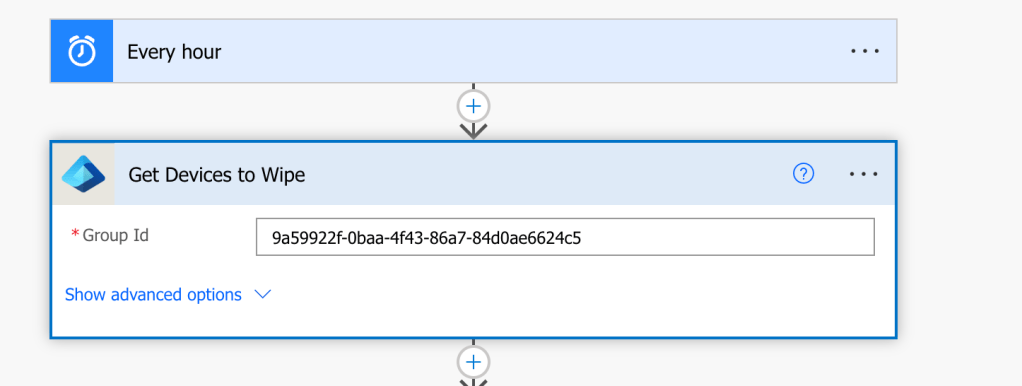
First thing, the trigger. As for me, for the demo, i will use “Every hour” trigger. Yet, you can consider a webhook to trigger the flow as soon as you add the devices to the group for example.
Then, use the built-in step “Get Group Members” and add the GroupId you want to parse :
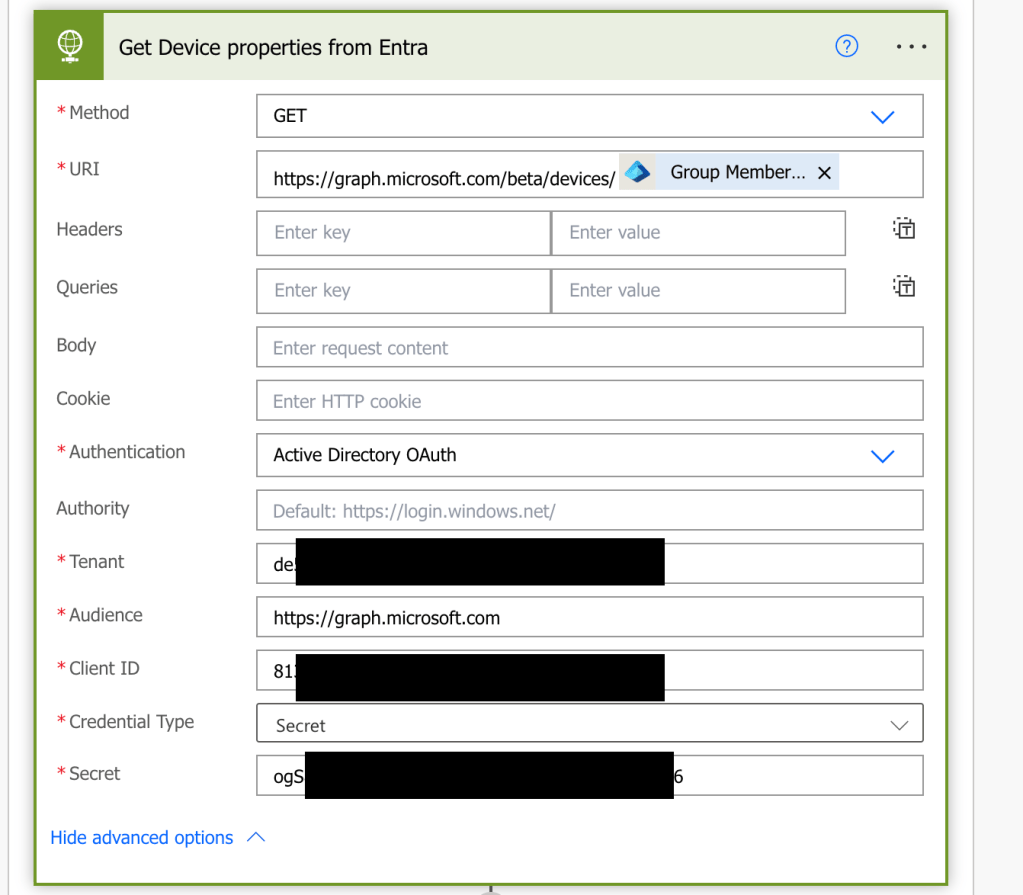
For each device, you want to get devices info from Entra. Objectids can be retrieved dynalically, no need for a variable. The Graph request is done through an HTTP Get request :

What about authentication ? Both options. Either you secure your registered application with a secret or certificate.
If you leverage a secret, then easy peazy, put your secret in plain text in the correct field or put it in parameters.
If you leverage a certificate, you will need to convert your private key in a base 64 format. Both cases look like :

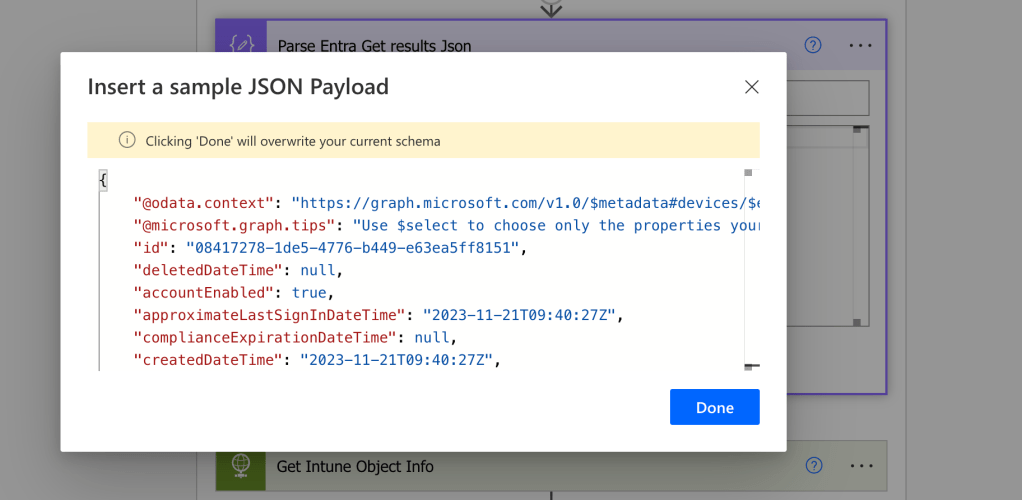
Now, all these results must be JSON parsed to be used later in the flow. Power auomate requests a template of the json output so it understands how to read the results.
To do that, pick “Parse JSON”, and in the schema requested, copy paste the output you have when calling the API in the Graph Explorer :


Ok, now it’s time to get Intune device.
Because we don’t know the intuneid, we will use the deviceid in entra to filter in intune the device which have the same “azureaddeviceid” property in Intune. HTTP request is used to get the intune device.
Entra deviceid can be used dynamically in the http request thanks to the previous Parse JSON step.

Note that the whitespaces (%20) and the single quotes (%27) characters are encoded because Power Automate does not accept whitespaces and single quotes.
Then, again we parse the JSON results with a scheme you can grab from Graph Explorer :

Time to wipe !
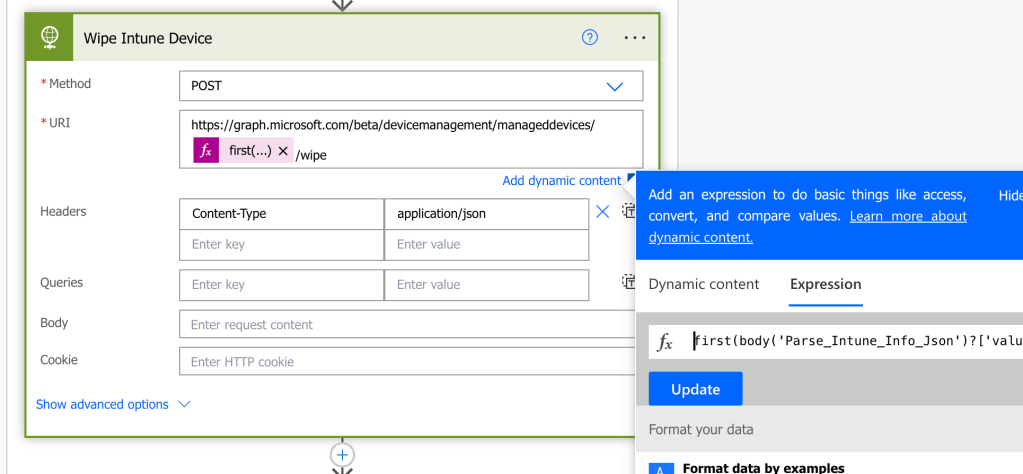
Based on the API documentation, wipe is done with a POST action on the API : https://graph.microsoft.com/v1.0/deviceManagement/managedDevices/{managedDeviceId}/wipe
Again, we use an HTTP request. Consider the Headers which must be specified as application/json as content-type. Body remains empty.
The manageddeviceid is a tricky part. Pick “Expression” instead on dynamic content and depending on your last Parsed Json step name, here is the expression that you will need to use the intune id :
first(body(‘Parse_Intune_Info_Json’)?[‘value’])?[‘id’]
“First” is because id is the first property displayed in the output.
“body Parse_Intune_Info_Json” is the body of my last parsed json step.
“value id” is the property i’m interested in
I consider my device now wiped. Still, If the flow keeps running every hour, the device will keep receive wiping instruction. It’s not a big deal but let’s remove the device from the group to avoid unecessary remote actions in the future.
Note : Both Intune and Entra objects will be removed as soon as the device sync with internet.
Select the builtin step “Remove member from group”. Chose the same group id from which the device is member of and pick the Group Members ID in the Dynamic content for the Member ID.

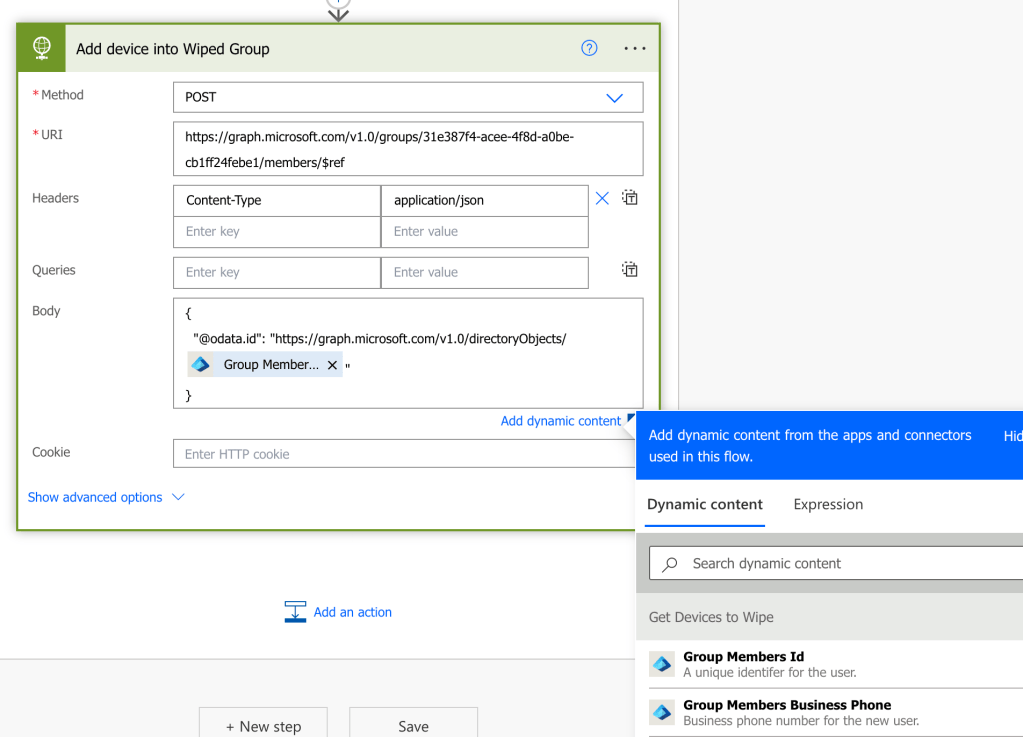
Now, we add each device to another group for reporting. Let’s name this group for example “Devices Wiped”.
You will need to create a body for this one :
{
  "@odata.id": "https://graph.microsoft.com/v1.0/directoryObjects/@{items('For_each')?['id']}"
}
You can pick Group members Id in the dynamic content. Uri will be the one in API documentation : https://learn.microsoft.com/en-us/graph/api/group-post-members?view=graph-rest-1.0&tabs=http
Here is the HTTP step :
Et voilà !
You have now an automated flow, wiping your devices members of a specific group. The step to add your devices into a group can easily be integrated with your tools in your organization.
 Poem to MDM