It’s a bit hot for Santa right ? What about your gift ? Here it is : The ability to block undesired applications on your managed macOS devices.
Have you ever wanted to prevent your users to run application you don’t allow in your organization ? Let’s do that together.
What is Santa ?
Santa is a github open-source project. It helps you manage which applications and files are allowed to run. It operates through a system extension that intercepts execution requests, and applies allow/block rules based on file hashes, code signatures, or path patterns.
You can use two modes :
- Monitor mode it logs, and optionally notifies, about unknown binaries. Deny list basically.
- And Lockdown mode it actively blocks anything not explicitly allowed. Allow list basically.
It’s really up to you and what you’re up to maintain. Do you prefer to maintain an allow list and deny anything else ? Or do you want to deny specific applications that comes up to your mind ?
Notes : IMO, exporting discovered apps from Intune and decide what you want to exclude is a good start.
What do i need ?
You need 5 things :
- Santa.app
- A profile to configure system extensions
- A profile to allow notifications
- A profile to allow TCC (transparency, consent, and control)
- A configuration profile to configure Santa experience (.mobileconfig)
Santa.app
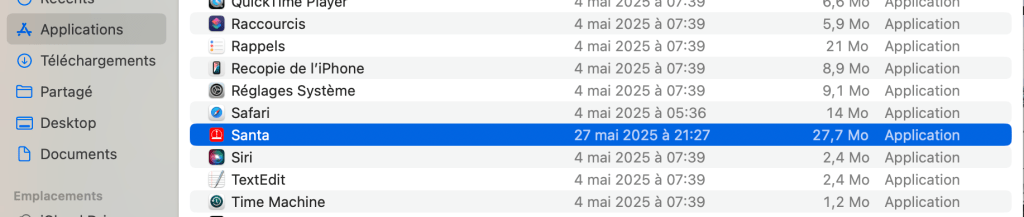
Get the .pkg from Github. Deploy it from Intune as a LOB app. The app will be installed on /Applications :
System Extensions
You can pick either Settings Catalog :
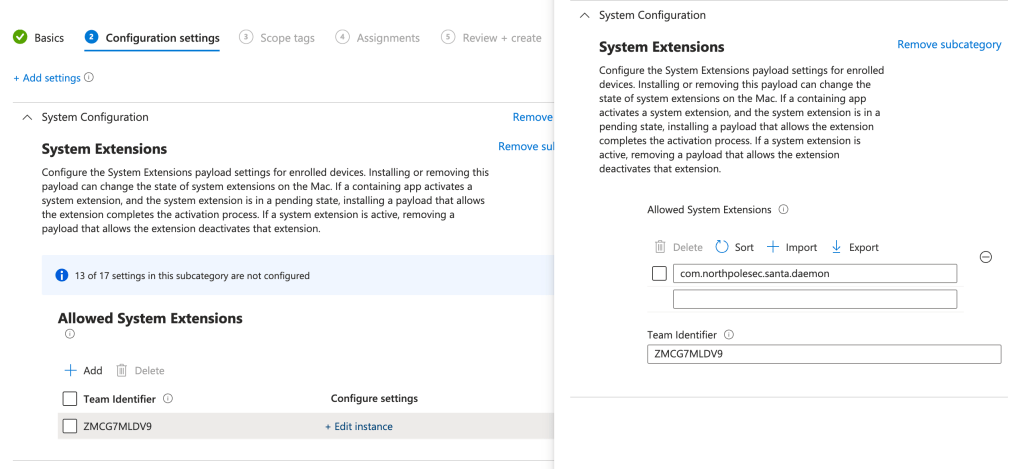
Or a custom profile that can you pick the original from here.
TCC
Time to allow some permissions to Santa, especially Full Disk Access. Based on Santa TCC documentation, you have two bundle IDs to grant Full Disk Access :
Bundle Id 1 : com.northpolesec.santa.daemon
Code requirement 1 : identifier “com.northpolesec.santa.daemon” and anchor apple generic and certificate 1[field.1.2.840.113635.100.6.2.6] /* exists / and certificate leaf[field.1.2.840.113635.100.6.1.13] / exists */ and certificate leaf[subject.OU] = ZMCG7MLDV9
Bundle Id 2 : com.northpolesec.santa.bundleservice
Code requirement 2 : identifier “com.northpolesec.santa.bundleservice” and anchor apple generic and certificate 1[field.1.2.840.113635.100.6.2.6] /* exists / and certificate leaf[field.1.2.840.113635.100.6.1.13] / exists */ and certificate leaf[subject.OU] = ZMCG7MLDV9
You can pick built-in Templates, settings catalog, or custom profile. Here is an example :
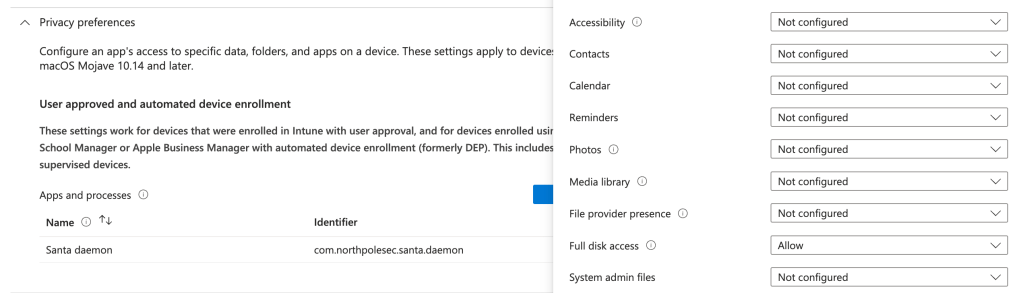
Allow notifications
Time now to allow Santa communicate with endusers.
Again, you can pick custom profile from Santa documentation here or built-in Intune profile in settings catalog :
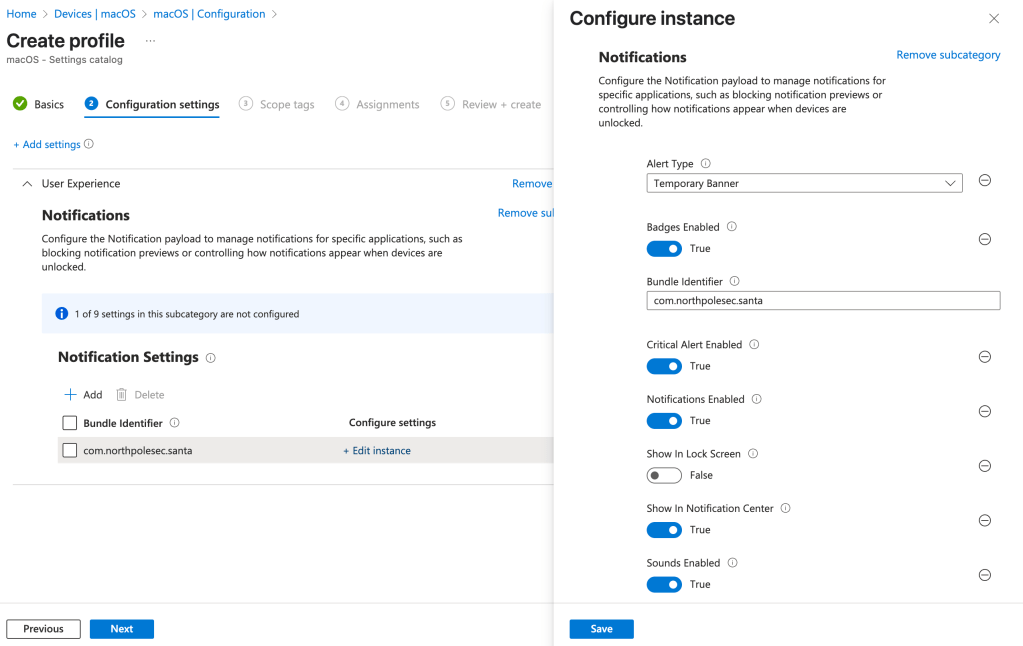
Allow Background Services
For this one, i suggest we use the custom profile provided by Santa documentation :
<?xml version="1.0" encoding="UTF-8"?>
<!DOCTYPE plist PUBLIC "-//Apple//DTD PLIST 1.0//EN" "http://www.apple.com/DTDs/PropertyList-1.0.dtd">
<plist version="1.0">
    <dict>
        <key>PayloadUUID</key>
        <string>C5F3332F-9DEA-4FE5-924E-81708D962874</string>
        <key>PayloadType</key>
        <string>Configuration</string>
        <key>PayloadOrganization</key>
        <string>My Company</string>
        <key>PayloadIdentifier</key>
        <string>com.mycompany.santa.servicemanagement.C5F3332F-9DEA-4FE5-924E-81708D962874</string>
        <key>PayloadDisplayName</key>
        <string>Santa: Background Apps</string>
        <key>PayloadDescription</key>
        <string>Suppress notifications about Santa background apps</string>
        <key>PayloadScope</key>
        <string>System</string>
        <key>PayloadVersion</key>
        <integer>1</integer>
        <key>PayloadEnabled</key>
        <true />
        <key>PayloadRemovalDisallowed</key>
        <true />
        <key>PayloadContent</key>
        <array>
            <dict>
                <key>PayloadUUID</key>
                <string>1161A7ED-2E7B-4744-B933-D3B9F58A1AAE</string>
                <key>PayloadType</key>
                <string>com.apple.servicemanagement</string>
                <key>PayloadOrganization</key>
                <string>My Company</string>
                <key>PayloadIdentifier</key>
                <string>com.mycompany.santa.servicemanagement.1161A7ED-2E7B-4744-B933-D3B9F58A1AAE</string>
                <key>PayloadDisplayName</key>
                <string>Background Apps</string>
                <key>PayloadDescription</key>
                <string>Allows Santa background tasks without notifications</string>
                <key>PayloadVersion</key>
                <integer>1</integer>
                <key>Rules</key>
                <array>
                    <dict>
                        <key>RuleType</key>
                        <string>TeamIdentifier</string>
                        <key>RuleValue</key>
                        <string>ZMCG7MLDV9</string>
                    </dict>
                </array>
            </dict>
        </array>
    </dict>
</plist>
And now, ladies ang gentlemen, the most important part of all, the Santa configuration to customize enduser experience.
Santa configuration
There are many keys available in the Santa project.
Using Intune, we will deploy the configuration in a .mobileconfig file directly to the macOS devices. Yet, you can pick a server or a blob or whatever to store your configuration and deploy that server adress through the .mobileconfig.
Personally, i prefer managing the all configuration directly into Intune and push that file to my managed macOS devices.
Here is my .mobileconfig file :
<?xml version="1.0" encoding="UTF-8"?>
<!DOCTYPE plist PUBLIC "-//Apple//DTD PLIST 1.0//EN" "http://www.apple.com/DTDs/PropertyList-1.0.dtd">
<plist version="1.0">
<dict>
<key>PayloadContent</key>
<array>
<dict>
<key>PayloadContent</key>
<dict>
<key>com.northpolesec.santa</key>
<dict>
<key>Forced</key>
<array>
<dict>
<key>mcx_preference_settings</key>
<dict>
<key>ClientMode</key>
<integer>1</integer>
<key>EnableSilentMode</key>
<false/>
<key>MachineIDKey</key>
<string>MachineUUID</string>
<key>ModeNotificationLockdown</key>
<string>Entering Lockdown mode</string>
<key>ModeNotificationMonitor</key>
<string>Entering Monitor mode<br/>Please be careful!</string>
<key>StaticRules</key>
<array>
<dict>
<key>identifier</key>
<string>48bb33f16bd6ff1b590290b336e1c826317fe193</string>
<key>policy</key>
<string>BLOCKLIST</string>
<key>rule_type</key>
<string>CDHASH</string>
</dict>
</array>
</dict>
</dict>
</array>
</dict>
</dict>
<key>PayloadEnabled</key>
<true/>
<key>PayloadIdentifier</key>
<string>com.mycompany.santa.359E3C7D-396F-4C45-99E7-F429620B9B21</string>
<key>PayloadType</key>
<string>com.apple.ManagedClient.preferences</string>
<key>PayloadUUID</key>
<string>359E3C7D-396F-4C45-99E7-F429620B9B21</string>
<key>PayloadVersion</key>
<integer>1</integer>
</dict>
</array>
<key>PayloadDescription</key>
<string>Manages Santa's configuration</string>
<key>PayloadDisplayName</key>
<string>Santa: Configuration</string>
<key>PayloadIdentifier</key>
<string>com.mycompany.santa</string>
<key>PayloadOrganization</key>
<string>My Company</string>
<key>PayloadRemovalDisallowed</key>
<true/>
<key>PayloadScope</key>
<string>System</string>
<key>PayloadType</key>
<string>Configuration</string>
<key>PayloadUUID</key>
<string>AFA02DE3-ACA6-49C4-9980-A3664E22E446</string>
<key>PayloadVersion</key>
<integer>1</integer>
</dict>
</plist>Many important part that you will want to understand and edit.
- Client Mode : 1 for Deny List, 2 for Allow List, 3 for only notifications
- identifier : That’s the most imporrtant part of the file. This is the unique identifier of the file which you can get running the santa command for any .app file : santactl fileinfo /Applications/yourapp.app

- Once you have run the santactl fileinfo command, it’s up to you to pick your prefered identifier known as “rule_type”. Supported rules type are : CDHASH, BINARY, TEAMID, CERTIFICATE
This is my suggested configuration. Feel free to pick your own, and get inspired by Santa dedicated documentation about the configuration. Santa offers also a lot of tools to troubleshoot your experience.
End-User experience
I want to prevent users to run Firefox because it’s not an approved browser in my company. How do i know users are using firefox ? I had a look at the intune discovered apps and categorized each of them.
So, my enduser succeed to download Firefox because for any reasons, its admin. Firefox is installed :
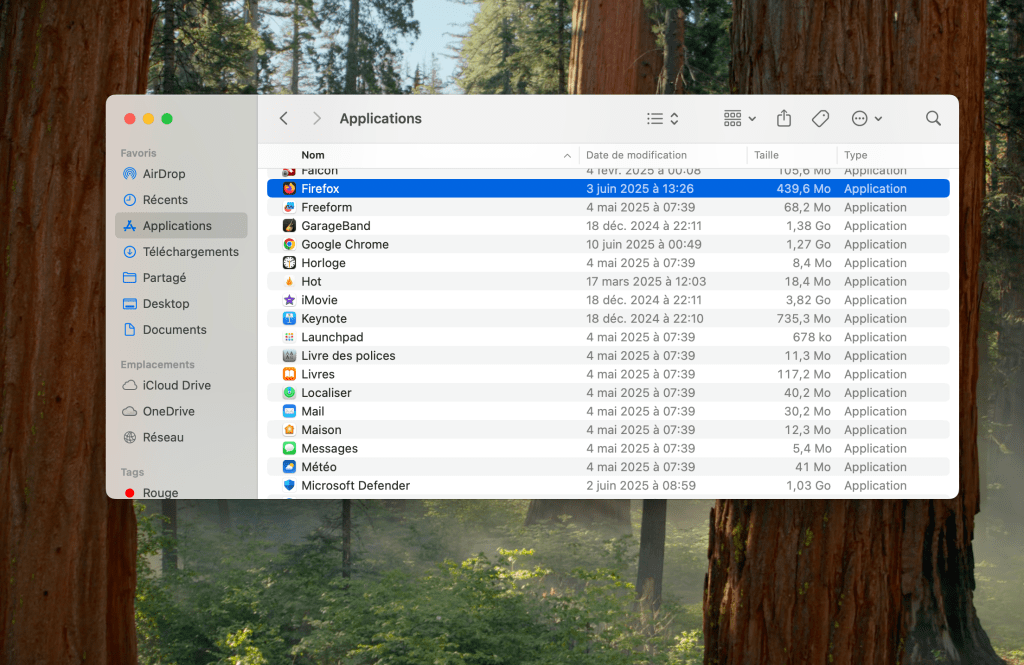
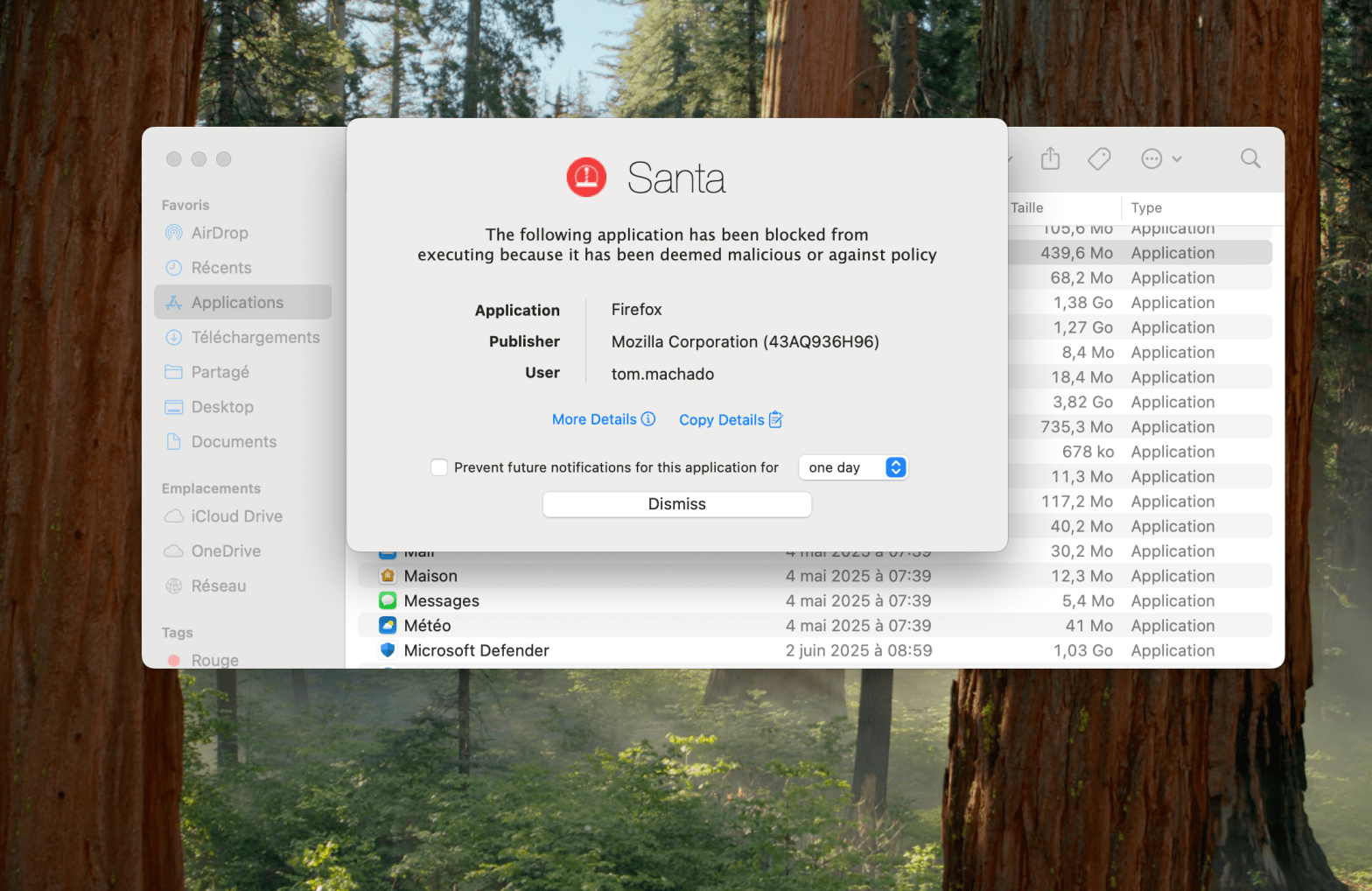
Try to run and tadaaaa :
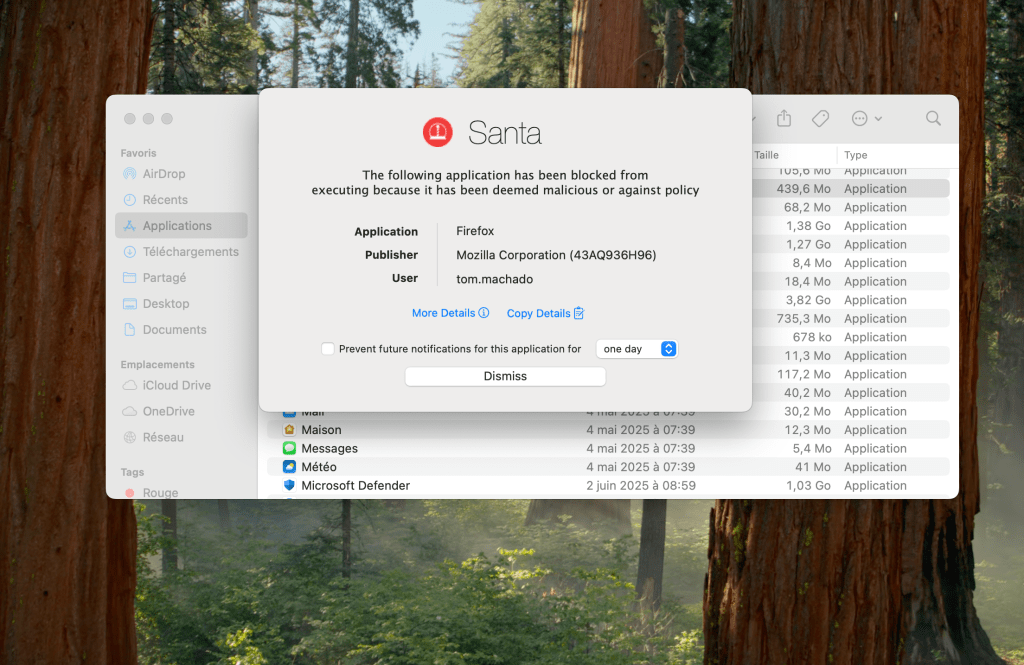
Oh and that’s the same experience no matter where the .app is located. See in Downloads folder :

That’s it ! Some configurations profiles, an app deployment and a strategy to design about which apps you want or not on your managed macOS devices.
Sharing is caring !
 Poem to MDM